Opera is your daily driver. Sidebars stay open. Workspaces split client projects. You still need proof that body copy, labels, and buttons remain readable after CSS lands in the browser.
Simple WCAG Contrast Checker brings that proof into Opera. The add-on belongs to the Developer Tools category on Opera Add-ons and ships from HardaWebPro. Click the toolbar icon. A floating panel scans visible text. Failures receive a red overlay with the contrast ratio printed on top.
Official Opera page: addons.opera.com — Simple WCAG Contrast Checker.
Listing snapshot for version 1.0.0: about 516.8 KB, last updated 7 July 2026, publisher hardawebpro. Service site: hardawebpro.com.
Who Gains the Most from the Opera Build
Freelance frontenders who already live in Opera gain the shortest path. You test the same engine family as Chromium without bouncing to another browser for every contrast check.
Designers reviewing a staging URL in Opera can validate muted brand colors before they approve a handoff. QA writers can attach ratio screenshots to tickets instead of vague “text looks washed out” comments.
Business owners who maintain a company site themselves can run a quick pass before a campaign launch. You do not need a design-system certificate to spot failing microcopy.
We released this Opera build because several collaborators refuse to abandon Opera’s workflow. Asking them to “just use Chrome for a11y” slowed releases. A native Opera listing removed that friction.
What Happens After You Click the Toolbar Icon
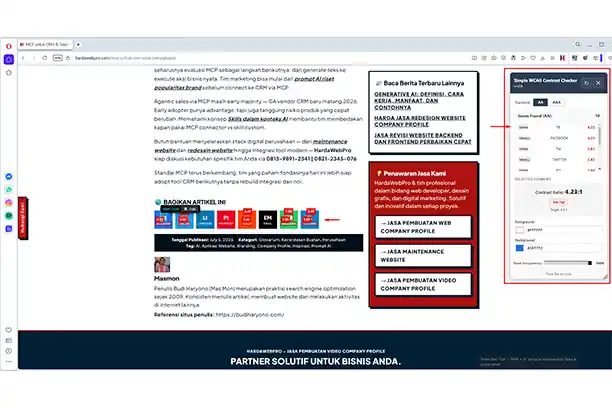
The inspector opens as a floating layer on the active webpage. It walks visible text nodes, calculates each contrast ratio, and marks elements that miss the selected WCAG level.
Select any highlighted node. The color editor appears. Change foreground or background. The ratio refreshes while you drag the picker—no page reload required.
One toggle flips between WCAG AA and AAA. AA aims for 4.5:1 on normal text. AAA aims for 7:1 on normal text. Large text uses the lower companion thresholds defined by WCAG.
You can drag the panel, resize it, and lower opacity when it covers a critical block. Preferences persist for the next session. Press Esc or the panel’s X control to dismiss it.
Primary rule reference: W3C Contrast (Minimum).
Install from Opera Add-ons in Minutes
Install only through the official Opera catalog. That route keeps updates and permission prompts transparent.
Name: Simple WCAG Contrast Checker
Publisher: hardawebpro / HardaWebPro
Store: Opera Add-ons
URL: Open the Opera listing
- Launch the Opera browser (desktop).
- Open the listing URL above.
- Add the extension from the detail page.
- Review the permission dialog before you confirm.
- Pin the icon so the inspector stays one click away.
- Navigate to an
httporhttpspage you control or may audit. - Click the icon and confirm the floating panel appears.
Plan roughly five to fifteen minutes for install, pin, and a first scan on one dense page such as a blog article or checkout form.
If Opera prompts you to download the browser itself, you opened the listing outside Opera. Switch to Opera, then return to the same URL.
Permissions Explained Without the Scare Quotes
Opera shows two capabilities for this extension:
- Access data on websites — required so the scanner can read rendered text and computed colors in the DOM.
- Write to the clipboard — required so you can copy selectors and hex values into tickets or CSS.
Neither permission means remote telemetry. The Opera description states that no data is collected and all processing stays local. That matches how we designed the tool.
Still, treat any extension that can read page content with care. Install the store build. Skip mirrored .crx archives from random blogs.
Support anchor for this product: hardawebpro.com/support/#simple-wcag-contrast-checker.
A Practical Opera QA Loop You Can Repeat
Use this loop on every staging deploy that changes colors, typography, or background media.
- Open the feature branch URL in Opera.
- Start Simple WCAG Contrast Checker.
- Leave AA selected for standard business sites.
- Record every red overlay into your issue tracker.
- Open one failure, adjust colors until the live ratio passes.
- Copy the CSS selector, then apply the approved values in code.
- Reload, rescan, and clear the ticket only when the overlay disappears.
Live edits preview intent. They do not save into your repository. Someone still commits the token or stylesheet change.
Tip: scan interactive states deliberately. Open the cookie banner, mobile menu, accordion panels, and error messages. A quiet homepage can look clean while the validation toast fails AA.
Reading Results Like a Developer, Not a Decorator
A missing overlay does not always mean perfection. Text may sit below the fold, inside a closed dialog, or behind a carousel slide.
Conversely, a failure over a hero photo often needs a darker scrim—not a slightly blacker font alone. The background luminance drives the math as much as the type color.
When design files disagree with Opera, trust the browser. Computed styles include opacity stacks that Figma frames may simplify.
AA Versus AAA for Brand Sites
| Text category | AA target | AAA target |
|---|---|---|
| Normal text | 4.5:1 | 7:1 |
| Large text | 3:1 | 4.5:1 |
Large text commonly starts near 24px regular or 18.66px bold. Display fonts with hairline strokes may still feel weak even when size qualifies as large.
Most company profile projects we ship aim for AA on body UI. AAA remains valuable for highly regulated audiences, yet it often forces richer brand pastels into darker territory.
Enhanced criteria documentation: W3C Contrast (Enhanced).
Feature Map for Opera Users
- Floating inspector launched from the Opera toolbar
- Automatic scan of visible text on the current page
- Red overlays that display failing contrast ratios
- Click-to-edit color controls with live ratio updates
- One-click switch between WCAG AA and AAA
- Draggable, resizable panel with an opacity slider
- Automatic save of panel preferences
- Esc or X to close without hunting menus
- Clipboard helpers for selectors and color values
- Local-only analysis with no personal data collection
Source repository linked from the Opera listing: github.com/itcomindo/simple-wcag-contrast-checker.
Honest Boundaries
Contrast is one accessibility pillar. Keyboard order, focus visibility, captions, and semantic structure still need separate checks.
This Opera extension will not issue a WCAG certificate. It will not replace a full audit. It will catch unreadable type early—usually before a client demo on a bright office monitor.
For a wider primer, see the W3C introduction to web accessibility.
If you want a polished company website plus practical accessibility hygiene, HardaWebPro can help as a freelance partner—not an agency layer. Contact path: hardawebpro.com or [phone].
Same Tool on Other Browsers
Teams that bounce between browsers can install matching builds:
Keep one shared checklist so Opera results map cleanly to Chrome or Edge tickets: primary CTA, form helper text, price labels, and footer links.
Privacy
Simple WCAG Contrast Checker does not collect personal data. Analysis remains on your device.
Privacy policy: https://hardawebpro.com/support/privacy-policy-simple-wcag-contrast-checker/
Tech Notes
- Manifest V3 — modern Chromium extension model used by Opera
- Vanilla JavaScript — no heavy framework payload
- Shadow DOM — keeps the panel isolated from host-page CSS collisions
- Local storage preferences — panel layout and standard choice stay on device
- WCAG contrast algorithm — relative luminance via sRGB linearization
Install Simple WCAG Contrast Checker from Opera Add-ons, scan your next staging URL on AA, and fix the ratios that fail before the client ever squints at the screen.
Author
- Nama: HardaWebPro
- URI: https://hardawebpro.com