Your company laptop opens Microsoft Edge only. Chrome extensions stay blocked. Meanwhile staging reviews keep returning the same note: “light gray text is hard to read.”
You need a WCAG contrast checker that lives inside Edge—not another online hex form that ignores real CSS, opacity, and image backgrounds.
Simple WCAG Contrast Checker fills that gap. HardaWebPro (Budi Haryono) published it for Edge Add-ons so developers, designers, and QA can audit contrast on the rendered page. Version 1.0.0. English UI. Local analysis only.
Get the official Edge build here: microsoftedge.microsoft.com add-ons listing.
Expect about ten minutes for install, pin, and a first pass on one staging URL.
Why Edge Teams Need a Live Contrast Audit
Design files measure two solid swatches. Browsers do not. Edge paints layered backgrounds, translucent overlays, and theme CSS that change the final luminance.
Consequently, a button that “passed” in the mockup can fail WCAG once it sits on a gradient or photo. Manual eye checks miss that. Spreadsheet hex pairs miss that too.
A page-level WCAG contrast checker reads what the user actually sees. For Edge-only workplaces, that means an add-on from Microsoft’s store—not a workaround that violates IT policy.
We built Simple WCAG Contrast Checker after repeated handoff friction on company profile sites. Soft brand palettes looked elegant. Body copy and helper text still dropped below AA.
Install Simple WCAG Contrast Checker from Edge Add-ons
Use Edge desktop for this path. Guest profiles and locked-down enterprise images may hide the Get button until IT unlocks store installs.
Extension name: Simple WCAG Contrast Checker
Store: Microsoft Edge Add-ons
Direct URL: Install from Edge Add-ons
- Open the listing inside Edge—not another browser.
- Press Get (or Install) and accept the permission dialog.
- Open the Extensions menu and pin the icon to the toolbar.
- Visit a real page: staging company site, localhost build, or production preview.
- Click the icon once to confirm the inspector panel loads.
Success looks simple: the icon stays on the toolbar, and a floating panel appears without console errors.
If nothing appears, open edge://extensions, confirm the add-on is toggled on, then reload the test tab. Restart Edge when the icon refuses to render after a fresh install.
Avoid unofficial package files. Corporate security teams approve store listings far faster than random sideloads.
Run Your First Contrast Scan on a Real Page
Pick a dense page first—pricing, blog post, or a long contact form. Sparse marketing heroes can hide weak secondary text.
- Load the URL you care about.
- Open Simple WCAG Contrast Checker from the toolbar.
- Set the panel to AA unless your brief already demands AAA.
- Wait for the scan of visible text nodes.
- Note every red overlay and the ratio printed on it.
- Click one failing element to inspect foreground and background colors.
- Nudge the colors in the panel until the live ratio clears the threshold.
- Copy the CSS selector (and hex values) into your ticket or stylesheet.
- Close with Esc when the pass feels clean enough for the next page.
The panel stores layout prefs locally: position, size, opacity, and last standard. Next QA day starts where you left off.
Important: live color tweaks preview the fix in Edge only. They do not rewrite your repo. Commit the approved tokens yourself—or hand the selector to whoever owns the CSS.
What the Red Overlay Is Telling You
Red means fail against the selected WCAG level. Clear areas usually mean pass—or text that sits off-screen / in a closed UI state.
Therefore open modals, tabs, mobile menus, and hover styles before you call the page done. Rescan after each state change.
Selectors help when class names come from page builders. You stop guessing which wrapper owns the muted label.
AA or AAA — Choose Before You Argue About Hex
Arguments over “is #777 okay?” waste time. Anchor the debate to published ratios instead.
| Content | Level AA | Level AAA |
|---|---|---|
| Regular text | 4.5:1 | 7:1 |
| Large text | 3:1 | 4.5:1 |
Large text usually means about 24px normal weight or about 18.66px bold. Ultra-thin display faces may still feel faint even when the math says “large.”
For most business brochure sites we target AA first. AAA squeezes pastel systems hard. Marketing loves soft gray-on-cream. WCAG AAA often rejects that look.
Read the primary rule on W3C Contrast (Minimum). For the stricter path, open W3C Contrast (Enhanced).
Edge-Specific Snags We Keep Seeing
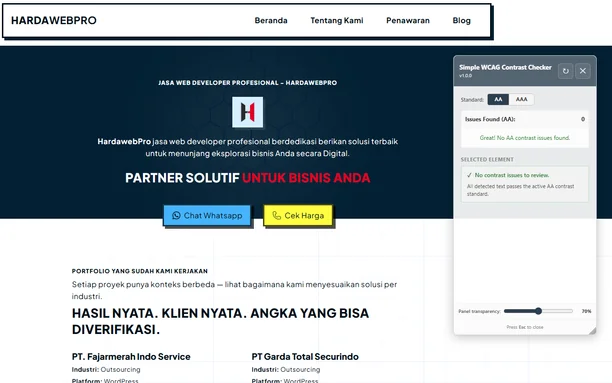
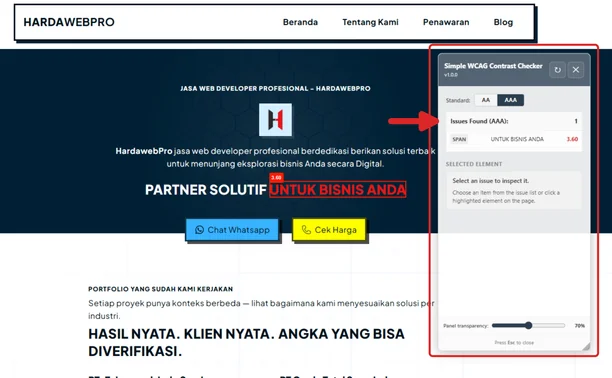
These issues show up more on managed Edge fleets than on personal Chrome machines.
- Store install disabled: ask IT to allow this exact Edge Add-ons listing.
- Panel blank on first click: hard-refresh; skip
edge://and similar internal pages. - Zero failures yet users complain: failing copy may live in a drawer, toast, or carousel slide.
- Numbers disagree with design tools: trust computed styles in Edge, including alpha.
- Copy selector does nothing: re-enable clipboard permission for the extension.
Text over photography is a classic trap. Darkening the caption hex alone rarely fixes a bright sky behind the words. Adjust the image scrim or move the type onto a solid band.
Broader accessibility context sits here: W3C accessibility introduction.
Scope Limits — So Expectations Stay Honest
Simple WCAG Contrast Checker evaluates color contrast for visible text. That is the job.
It does not certify your site. It does not replace keyboard testing, screen-reader walkthroughs, or ARIA reviews. Treat scan output as a fast visual gate before release—not a full accessibility audit report.
Still, for frontend work, that gate saves hours. You catch muted footer links, disabled-looking CTAs, and placeholder labels before clients notice on a projector.
If your team wants a cleaner company website and less firefighting after go-live, HardaWebPro can handle build and maintenance work. Start at https://hardawebpro.com.
Capability Checklist
Inside the Edge panel you can:
- Switch between WCAG AA and AAA
- Scan the full visible page in one pass
- See failing text marked with a red overlay plus ratio
- Inspect a marked node and edit colors in real time
- Watch the ratio update while you tweak swatches
- Copy a CSS selector for the failing element
- Drag, resize, and fade the floating panel
- Keep those panel prefs between sessions
- Rely on Shadow DOM so host CSS cannot break the UI
- Dismiss the panel with the Esc key
Listings Outside Edge
Other browsers on your team can use matching store pages:
Firefox publisher page: HardaWebPro on AMO.
Align the QA checklist across browsers: primary buttons, promo chips, price rows, and microcopy in the footer.
Privacy
The extension does not harvest personal data. Contrast math runs on your machine.
Policy page: hardawebpro.com privacy policy for this extension.
Tech Stack
- Manifest V3 — Chromium extension model that Edge supports
- Vanilla JavaScript — no framework lock-in
- Shadow DOM — UI isolation from the host document
- Storage API — preferences saved on device
- WCAG 2.1 contrast math — relative luminance from linearized sRGB
Pin Simple WCAG Contrast Checker in Edge. Scan AA on staging. Fix the tokens that fail. That short loop keeps unreadable UI out of production.
Author
- Nama: HardaWebPro
- URI: https://hardawebpro.com